

How to Use the GMC HD Surround Vision Recorder
How to Use the GMC HD Surround Vision Recorder
Somebody backs into you in the King Soopers lot on 10th Street and drives off. A hailstorm rolls over Greeley at 4 p.m. and you want proof of when the dents showed up. Or you just want video of the drive up Poudre Canyon. Your GMC already has the cameras for all of that. What most owners don’t know is that it can now record from them.
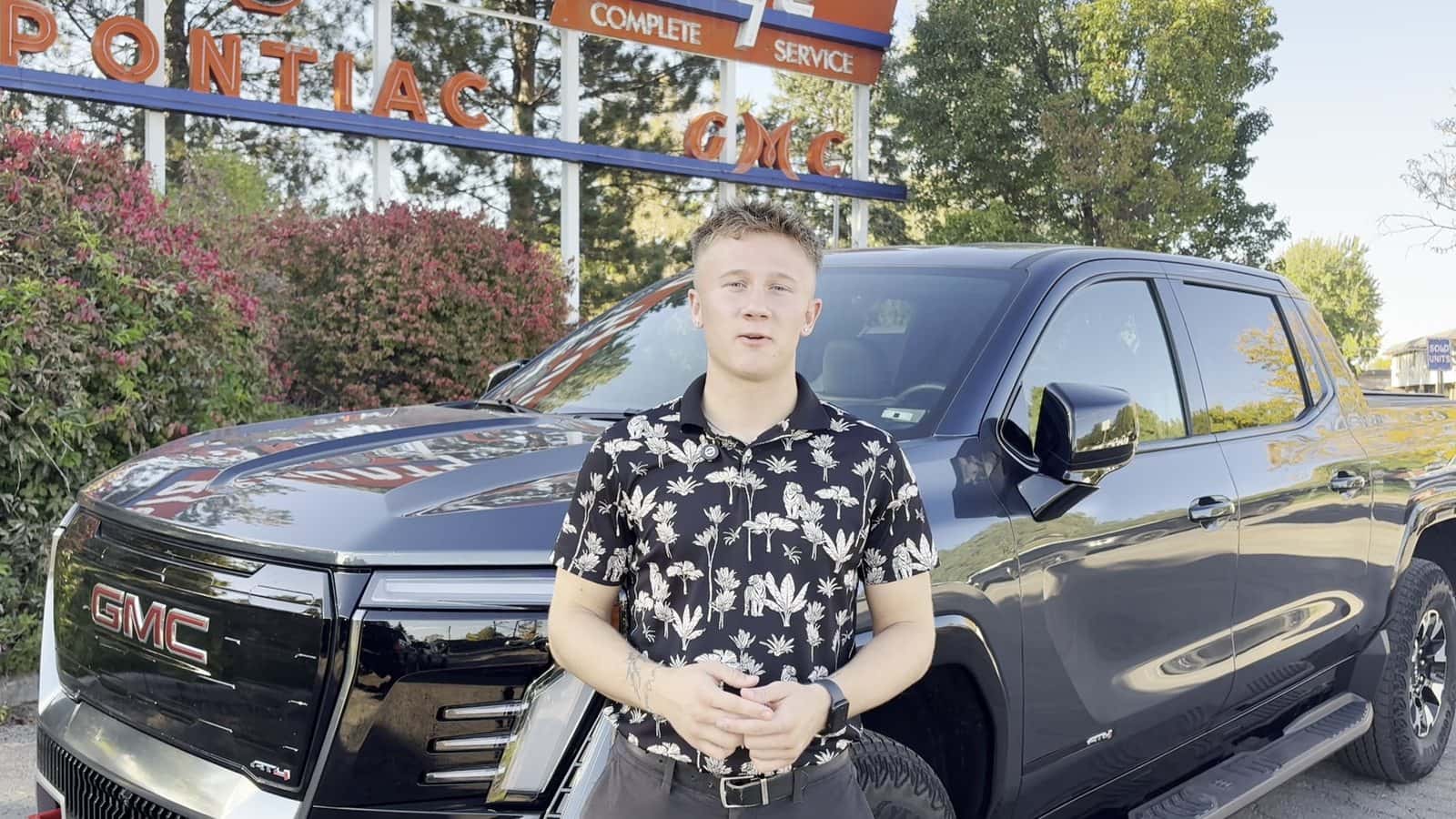
GM calls the feature the Surround Vision Recorder. It turns the HD Surround Vision camera system into a built-in dash cam that saves every drive to a USB drive in your center console. Our salesperson Everett set it up on a 2026 Sierra EV AT4 on our lot, and the whole thing took about five minutes. Here’s the full walkthrough, plus the one detail that trips up almost everyone.
To use the GMC Surround Vision Recorder, plug a FAT32-formatted USB 3.0 drive (64 GB or larger, 32 GB free) into the center console data port, open the Recordings app on the infotainment screen, tap Change Settings, and turn on Surround Vision Recorder. The truck then records front, rear, left, and right camera views every time you drive.
Footage is saved in five-minute MP4 files on a rolling two-hour loop. You can watch it on the truck’s screen in Park or pull the drive and open the files on a computer.
The feature is on the Sierra EV, Yukon, Hummer EV, Acadia, and Terrain (equipped models, delivered by software update). Gas Sierra 1500 and HD trucks don’t have it yet.
Watch: Setting It Up on a 2026 Sierra EV AT4
Everett walks through the whole process in under two minutes: the USB port, the Recordings app, the red recording dot on the drive, and the playback screen afterward. The steps below match the video.
What Is the HD Surround Vision Recorder?
Two names get mixed together here, so let’s untangle them. HD Surround Vision is the camera hardware: four cameras (one in the grille under the emblem, one under each outside mirror, one in the tailgate handle) that stitch together the bird’s-eye view you see when parking. Trucks with trailer camera provisions add a fifth camera on the back of the cab. The Surround Vision Recorder is the software that records from those cameras. Most owners call the whole package the HD Surround Vision Recorder, and that’s fine. GM’s support pages use the shorter name.
What makes it different from a $150 aftermarket dash cam? Four angles instead of one, no suction cup on the windshield, no wire snaking down the A-pillar, and nothing to steal. The cameras are already there. All you add is a flash drive.
GM started rolling the feature out in late 2025 through over-the-air updates on select Buick, Cadillac, Chevrolet, and GMC models, and it’s spreading to more 2027 vehicles through the end of 2026. GM’s product manager for camera features, Angelica Wilson, put the reason plainly: owners asked for it, and an entire aftermarket industry had grown up around that demand.
It’s opt-in. Nothing records until you turn it on, and GM says it doesn’t collect video from the USB recordings. More on that in the privacy section.
Which GMC Models Have the Surround Vision Recorder?
This is the question nobody answers cleanly, so here’s our best read as of October 2026. Availability depends on model year, the camera package, and whether the software update has reached your VIN.
| GMC model | Status | How it arrives |
|---|---|---|
| Sierra EV (2025, 2026) | AvailableAvailable on equipped trucks. We confirmed it on a 2026 AT4 in Greeley. | Software update. If the Recordings app is missing, the update hasn’t landed yet. |
| Sierra EV (2027) | Built inAdds Recorder, Security Recording, and Cabin Glance with a new interior camera | Built in. Production started October 12, 2026. |
| Yukon and Yukon XL (2025, 2026) | AvailableAvailable | GM Update 663.10 (Field Action N26-256458). Some vehicles need it applied at the dealer. |
| Hummer EV (2026) | AvailableAvailable, with Security Recording | GM Update 661.50 |
| Acadia and Terrain | AvailableOn GM’s compatible list; 2027 models add Security Recording and Cabin Glance | Software update on current models, built in for 2027 |
| Sierra 1500 and Sierra HD (gas and diesel) | Not yetNot yet. The cameras are there, the recorder isn’t. | No GM announcement as of this writing. Owners who try get a “not correctly formatted” message. |
| Canyon | UnknownNot on any list we’ve seen | Unknown |
Explore more guides: 2026 Yukon Technology • 2026 Sierra 1500 Technology • 2026 Sierra HD Technology
What USB Drive Do You Need?
This is where most people get stuck, and it’s the reason Everett’s video spends time on it. The truck is picky about the drive, and it tells you so. When we plugged in a drive that didn’t qualify, the Sierra EV put the exact requirements on screen under the heading “Compatible USB Drive Not Found.”
The USB drive checklist
Format: FAT32
Not exFAT, not NTFS. This is the one that catches people, because most new drives ship as exFAT.
Capacity
64 GB minimum, with at least 32 GB free.
Speed
USB 3.0 or newer. A name-brand drive rated for sustained writes will last longer, since the truck writes to it constantly.
Connector
Depends on the vehicle. The 2026 Sierra EV’s console port is USB-C. Many Yukons use USB-A. Buy a drive that matches, or carry a small adapter.
Port
Use the data port in the center console, not a charge-only port. Charge-only ports won’t register the drive at all.
How to format a drive to FAT32
Formatting erases everything on the drive, so copy off anything you want first. Then:
- Mac. Open Disk Utility, select the drive (the top-level device, not the volume), click Erase, choose MS-DOS (FAT) and Master Boot Record, and click Erase. Done in about 10 seconds.
- Windows. Right-click, Format won’t offer FAT32 on anything larger than 32 GB. Download the free Rufus utility, select the drive, pick FAT32 as the file system, and click Start. Or open Command Prompt as administrator and use diskpart with format fs=fat32 quick.
- Check it. Right-click the drive and open Properties (Windows) or Get Info (Mac). The file system should read FAT32 or MS-DOS (FAT32).
Why FAT32 in 2026? Because it’s the one format every piece of embedded hardware on earth can read, including the infotainment system in your truck. The trade-off is a 4 GB limit per file, which doesn’t matter here since each clip is about 108 MB.
How to Set Up the Surround Vision Recorder, Step by Step
These are the exact steps from the video, done on a 2026 Sierra EV AT4 in our lot at 2699 47th Ave. Other equipped GMC models follow the same menu path.
- Plug in the drive. Open the center console and insert your FAT32 drive in the data port. On the Sierra EV it’s the USB-C port at the bottom of the console bin.
- Open Recordings. On the infotainment screen, tap the Recordings app. It’ll confirm it found a compatible drive. If it didn’t, it shows the requirements list and you go back to the formatting step.
- Change Settings. Tap Change Settings and switch Surround Vision Recorder on. While you’re there, turn on Security Recording if you want alarm-triggered clips while parked.
- Drive. Shift into Drive and pull away. A red recording indicator appears on the display. That’s your confirmation that all four cameras are writing to the drive.
- Leave it. From here on, the truck records automatically every time it’s on. You never touch it again unless you want to watch or export something.
How to Watch, Save, and Export Recordings
After Everett’s two-minute test loop, the trip was already sitting in the Recordings app by the time he put the truck in Park. Playback only works in Park, which is sensible.
The player has the controls you’d expect: play, pause, skip, and a scrub bar. Recent trips are listed by day down one side. Camera views (front, rear, left, right) sit on the other, so you can jump between angles at the same moment in the clip. An options menu handles export, and a safe-eject button releases the drive.
Getting the files onto a computer or phone
Tap safe eject, pull the drive, and plug it into a laptop. The clips are plain MP4 files, so they open in anything. They’re saved as four files per five-minute segment, named FRONT, LEFT, REAR, and RIGHT, and they’re buried a few folders deep (look under Android, then media, then a folder starting with com.gm). Copy what you need to the desktop before you do anything else, because of the next point.
Security Recording, Crash Recording, Cabin Glance, and Live View
The Recorder is one of four related camera features GM is shipping together. They’re easy to confuse, and some depend on hardware your truck may or may not have.
Security Recording
When the vehicle alarm trips while parked, all available cameras record for about 30 seconds and the clip is labeled Security in the app. GM’s own example trigger is someone unplugging a charging EV. Turn it on or off in the Recordings app’s Settings.
Crash Recording
If the truck detects an impact, it saves the moments before and after. GM doesn’t guarantee it, since a hard hit can damage the cameras or the drive, but in a parking lot bump it’s exactly what you want.
Cabin Glance
A view of the interior from a cabin camera, which only 2027 models like the Sierra EV, Acadia, and Terrain have. Useful for checking on kids or a dog in the back. The interior camera isn’t part of normal drive recording.
Live View
Streams the cameras to your phone through the myGMC app. This is the only one of the four that needs an active OnStar plan. The USB recorder and in-truck playback work with no subscription at all.
What the Surround Vision Recorder Doesn’t Do
It’s a good feature. It is not a Tesla Sentry Mode, and it helps to know the limits before you count on it.
- No audio. GM’s documentation is explicit: the system does not record sound. That sidesteps wiretap concerns, and it also means you won’t have a recording of what the other driver said.
- No always-on parked recording. Continuous recording runs only while the vehicle is on. Parked, you get the 30-second Security Recording when the alarm trips, and that’s it. Tesla’s Sentry Mode watches continuously (and costs range doing it). Rivian’s Gear Guard does the same at a cost of roughly two miles of range per day on newer trucks. GM chose the lighter approach, so there’s no overnight battery penalty to worry about on the Sierra EV, and also no video of the person who keyed your door without setting off the alarm.
- Two hours, then it loops. Covered above, but it bears repeating. Export promptly.
- Valet Mode stops it. Hand the keys to a valet and recording pauses.
- No speed or GPS overlay that we can confirm. Aftermarket dash cams often stamp speed and location on the video. We found no GM documentation that the Recorder does, so don’t plan on it for an insurance dispute.
Troubleshooting: Not Found, Not Formatted, No App
“Compatible USB Drive Not Found” or “not correctly formatted”
Almost always the drive. Check all three: FAT32 (not exFAT), 64 GB or more with 32 GB free, and USB 3.0. Then make sure it’s in the console data port and not a charge-only port. If you own a gas Sierra 1500 or HD, this message is expected; the recorder isn’t enabled on those trucks yet.
No Recordings app on the home screen
The software update hasn’t reached your vehicle. Check Settings for a pending update and make sure the truck has been parked somewhere with a good cellular signal. Some owners, especially with 2025 Yukons, needed the dealer to apply the update. We can do that in our service department.
No red recording dot while driving
Go back to Recordings, then Change Settings, and confirm Surround Vision Recorder is on. Opening the live camera view while driving pauses recording on some vehicles, so close it. If the drive has filled with other files and dropped under 32 GB free, clear it off.
Drive keeps failing after a few months
Constant writing wears out cheap flash memory. Replace it with a name-brand drive rated for sustained writes (the kind sold for dash cams or security cameras) and format it FAT32.
Privacy and Recording Laws
GM’s stated position is simple: it does not collect data or video from Surround Vision Recorder or Security Recording USB recordings, and the video is only accessible from the drive in your console. That design is no accident. GM spent 2025 under an FTC order over connected-vehicle data, and a recorder that never touches the cloud is the cleanest answer.
The owner’s manual puts the legal responsibility on you: use the recorder in line with local video recording laws, and let people know when recording is happening where that’s required. In practice, recording the exterior of your own truck on a public road is the same situation as any windshield dash cam, and those are everywhere in Colorado. Interior recording (Cabin Glance, Live View on 2027 models) is where state rules get more specific, which is why GM shows consent pop-ups for occupants when the interior camera is enabled.
We’re a dealership, not a law firm. If you plan to use footage in a claim or a dispute, your insurance adjuster or an attorney is the right call.
Why Northern Colorado Drivers Will Use This
Hail
Weld County sits in one of the most active hail corridors in the country. A timestamped clip showing a clean hood at 3:40 p.m. and golf balls bouncing off it at 3:55 p.m. is the simplest claim documentation there is.
Parking lots
Centerplace, the UNC campus, the Greeley Stampede grounds in June. Door dings and hit-and-runs happen in lots, and the alarm-triggered Security Recording is built for exactly that.
I-25 and US-34
Four camera angles matter more on a highway than one. A side camera catches the pickup that drifted into your lane near the Crossroads interchange, which a forward-only dash cam would miss entirely.
Trailering
Haul a stock trailer or a boat up to Horsetooth and the rear camera gives you a record of the hookup and the trip. On trucks with trailer camera provisions, the fifth cab camera watches the bed.
The fun stuff
Poudre Canyon in October. The Pawnee Grassland after a storm. A Sierra EV AT4 on a two-track with all four cameras rolling makes a better video than your phone propped on the dash.
Frequently Asked Questions
Does GMC have a built-in dash cam?
Which GMC vehicles have the HD Surround Vision Recorder?
Does the GMC Sierra EV have the Surround Vision Recorder?
What USB drive do I need for the Surround Vision Recorder?
How do I format a USB drive to FAT32 for my GMC?
Why does my GMC say the USB drive is not correctly formatted or not found?
Why don’t I see the Recordings app on my screen?
Does the Surround Vision Recorder record while the vehicle is parked or off?
Does the Surround Vision Recorder record audio?
How long does it record and does it overwrite old footage?
How do I download Surround Vision Recorder videos to my computer?
What triggers Security Recording?
Does GM or OnStar see my recordings?
Can Weld County Garage install the update if my GMC doesn’t have the feature yet?
Want It Set Up Before You Leave the Lot?
Ask for Everett and we’ll walk you through it on your own truck, or have our service team check your VIN for the update. We’re at 2699 47th Ave, Greeley, CO 80634. Call 970-400-9952.
Written by Ryan Green, Marketing Director at Weld County Garage GMC. Last updated October 2026. Setup steps verified in person on a 2026 GMC Sierra EV AT4 at our Greeley dealership. Model availability and software update details come from GM support documentation and GM service bulletins current as of publication and may change. Information provided for educational purposes and reflects the author’s expertise with GM vehicles serving Northern Colorado drivers.
0 comment(s) so far on How to Use the GMC HD Surround Vision Recorder